
Creating and Managing Users
When you sign up for a portal account, you become the account owner and your user account is granted Account Administrator permissions. Depending on your subscription, you can invite additional users to access the portal.
Inviting a new user
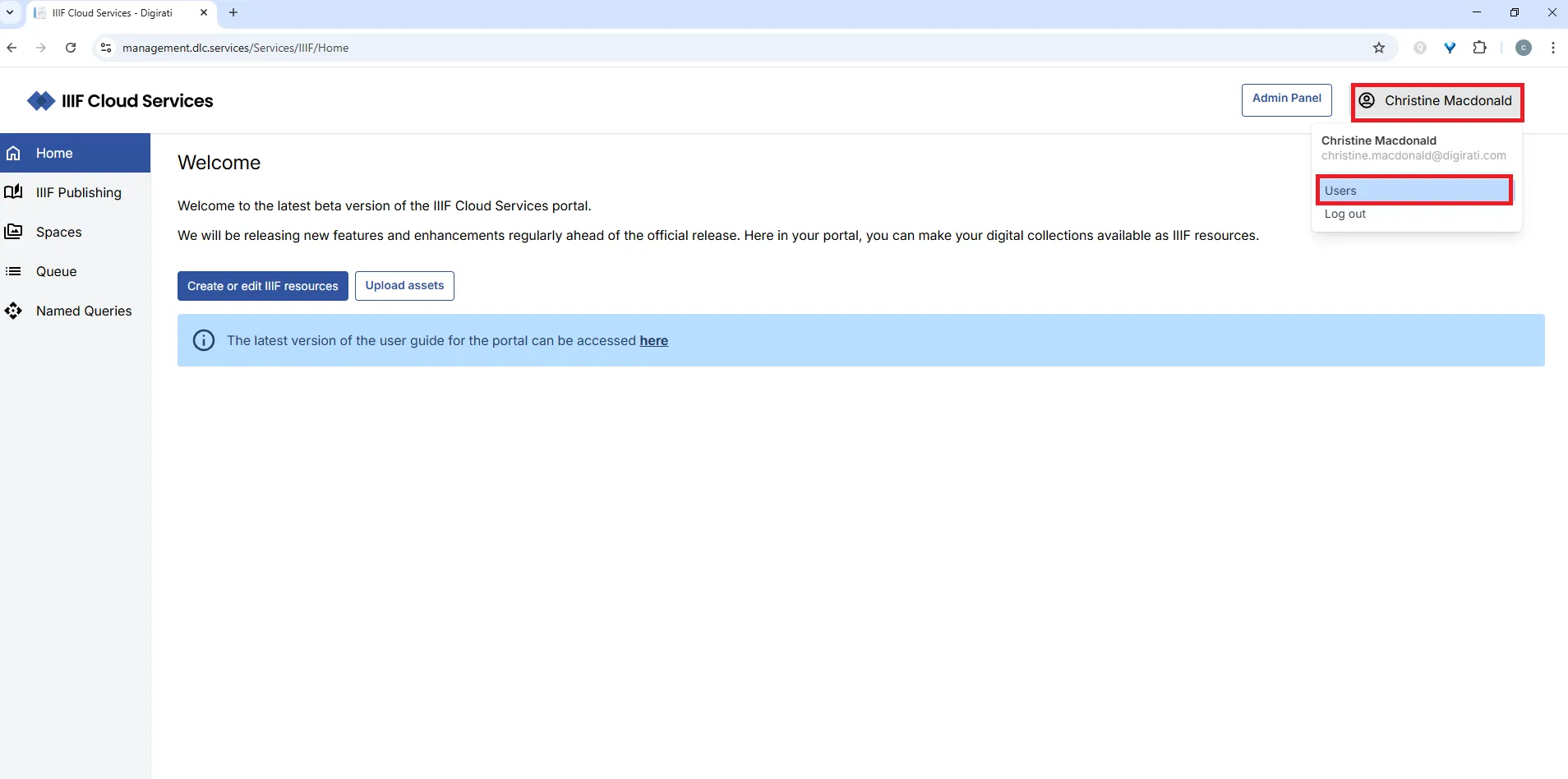
Section titled “Inviting a new user”After logging in, click your name in the top-right corner and select Users.
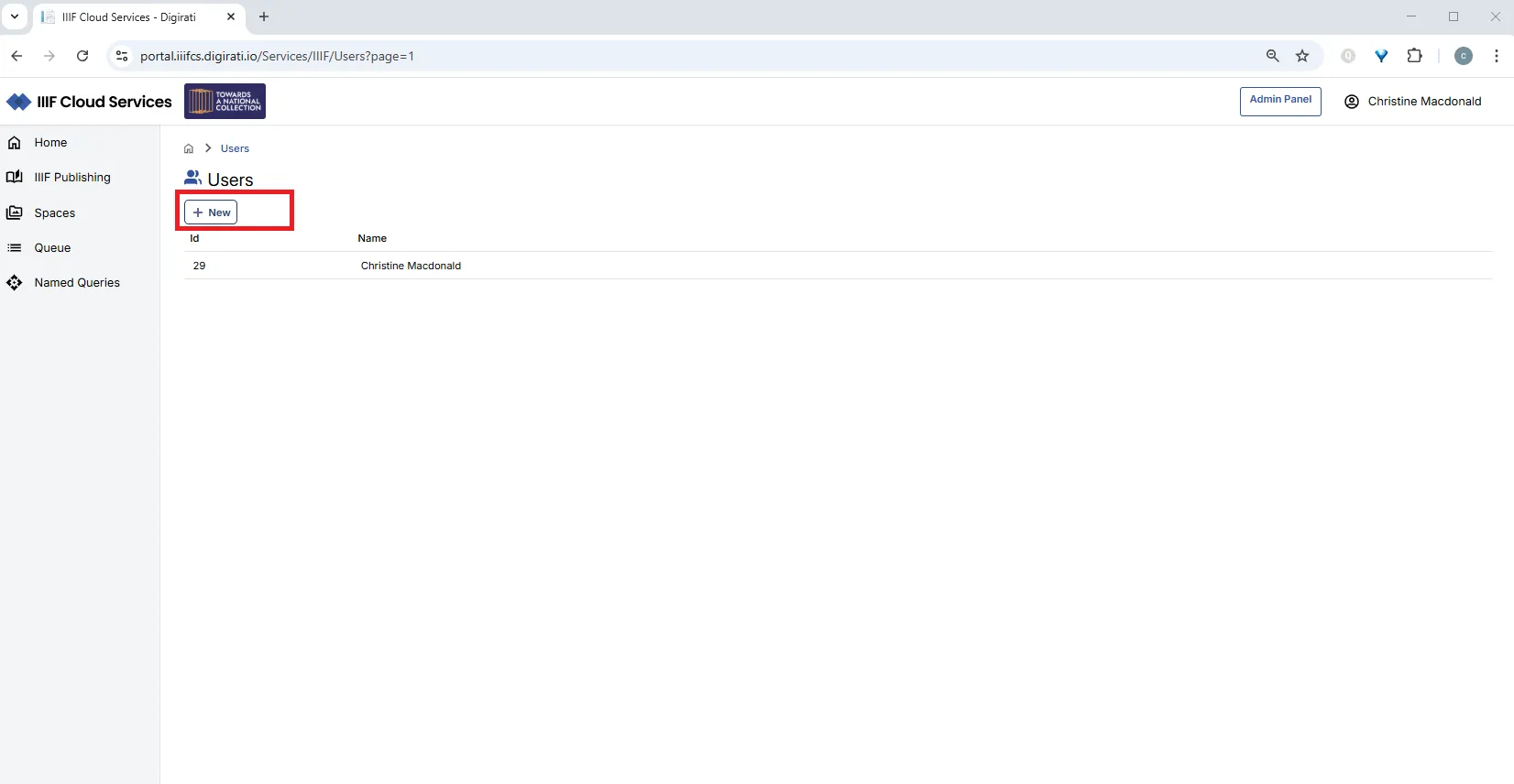
You will see your own user listed, along with the option to add a new user. Click +New.
Enter the new user’s name and email address. The email address must not already be in use within any other Customer account on the platform.
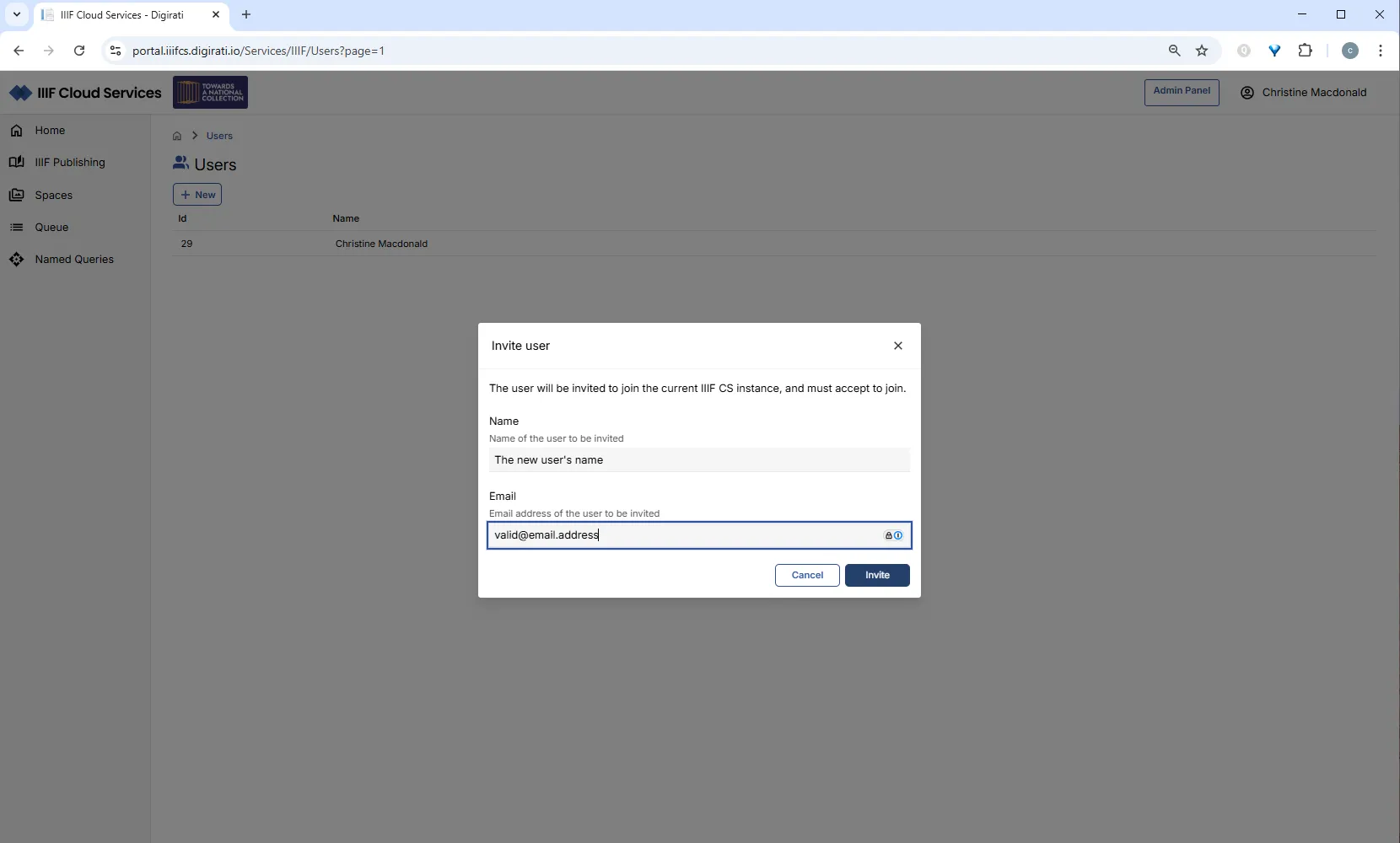
Click Invite. The new user’s status will be Unverified until they follow the verification link in the invitation email. Once verified, their status changes to Verified.
Disabling a user
Section titled “Disabling a user”You may need to disable a user account, for example when someone leaves your organisation.
After logging in, click your name in the top-right corner and select Users.
Click on the user you want to disable.
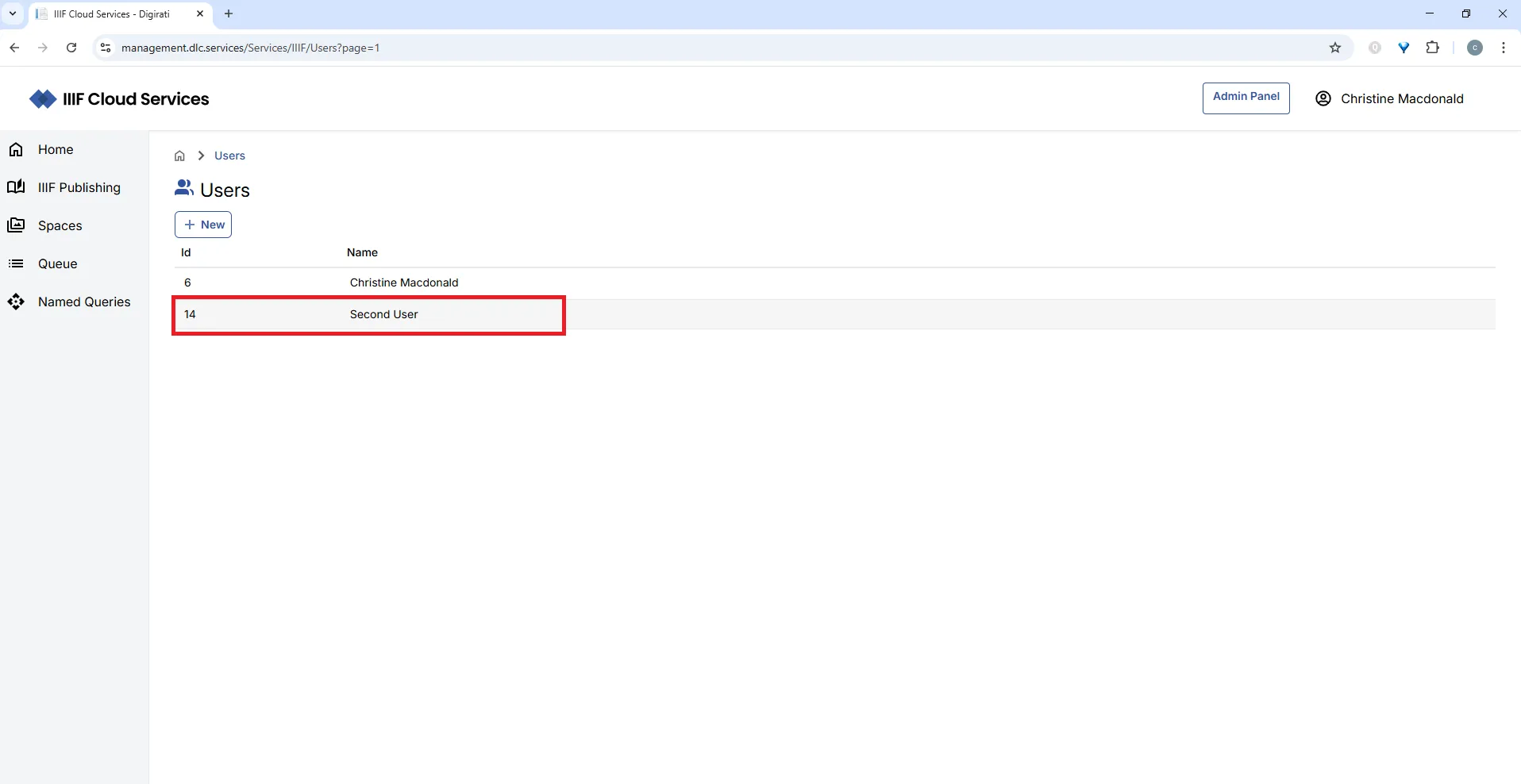
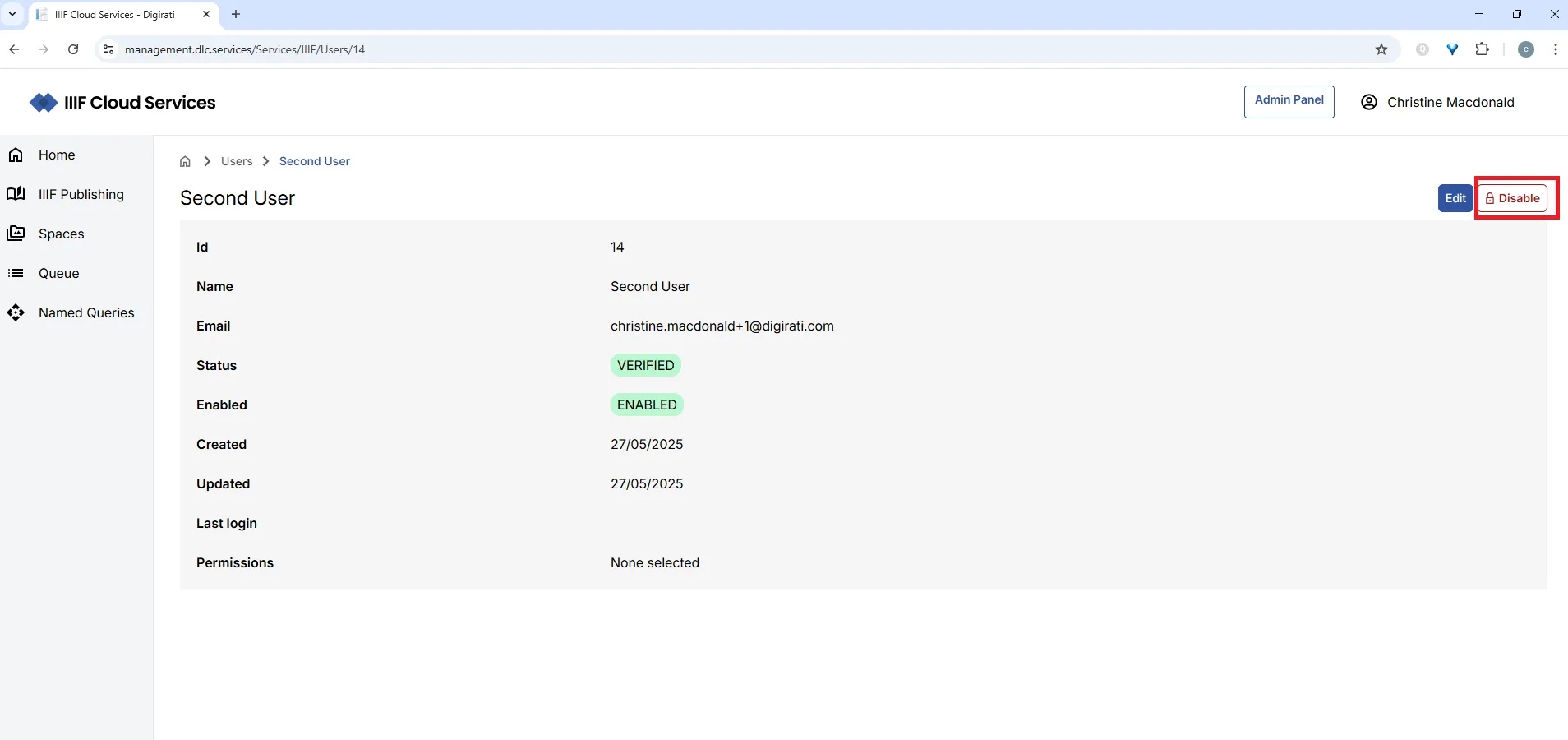
Click the Disable button.
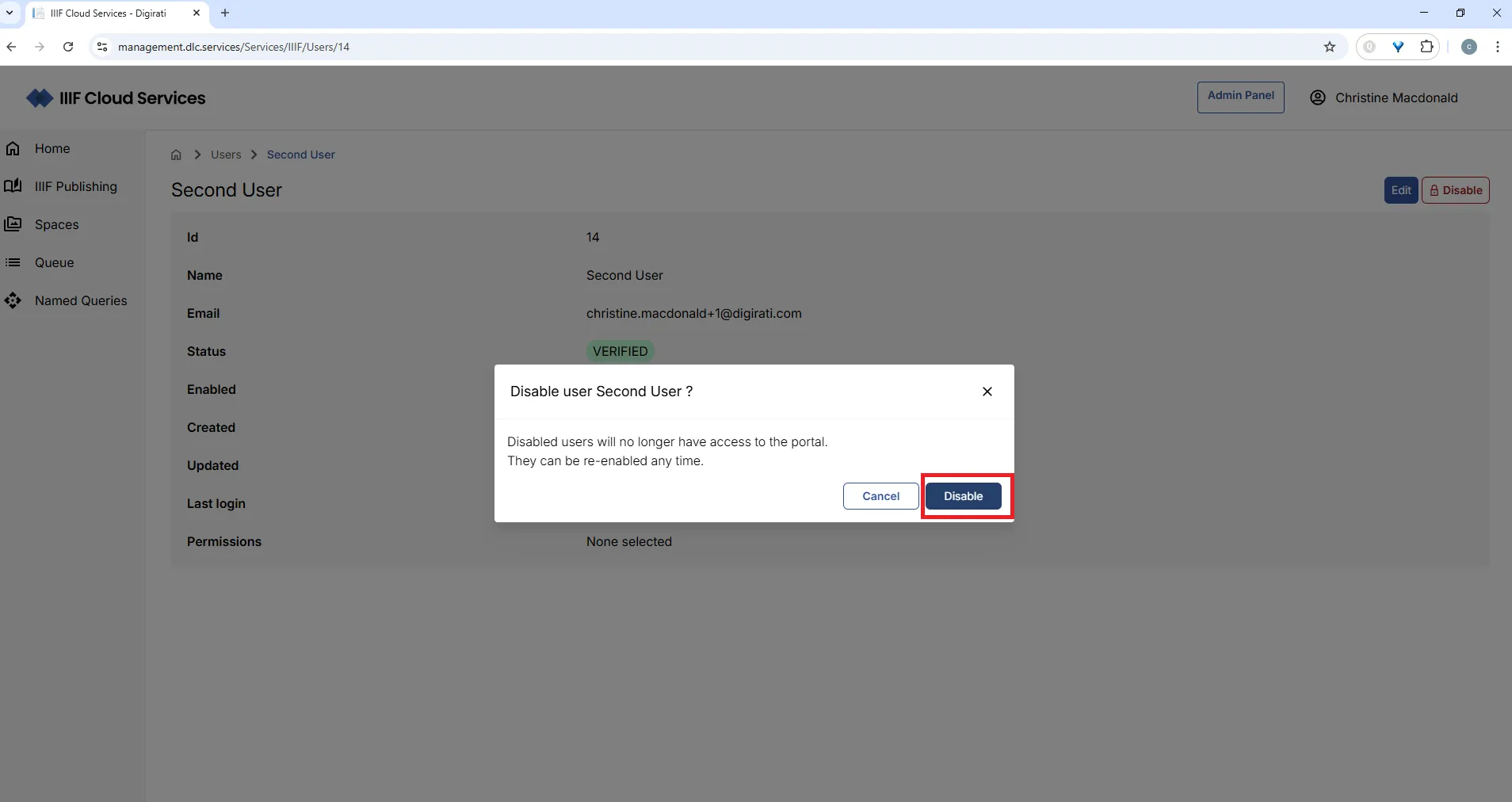
Confirm by clicking the second Disable button, or click Cancel to abort.
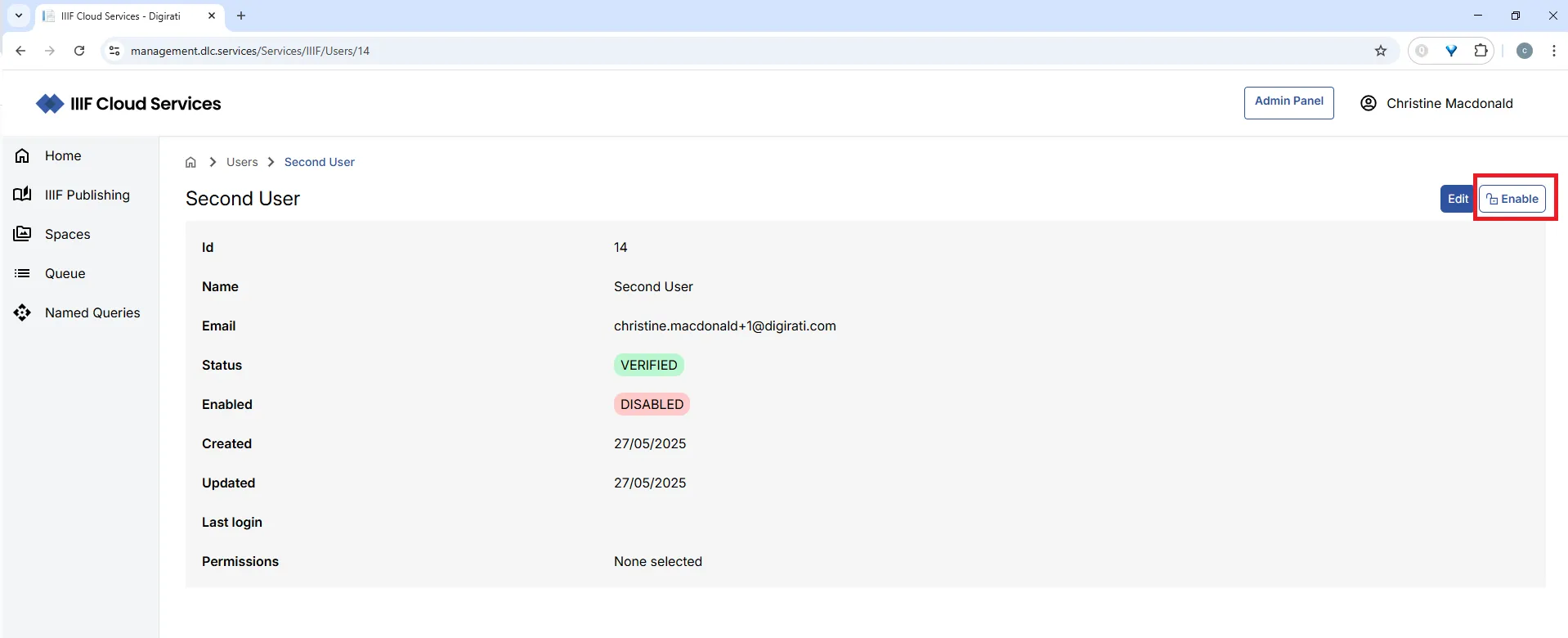
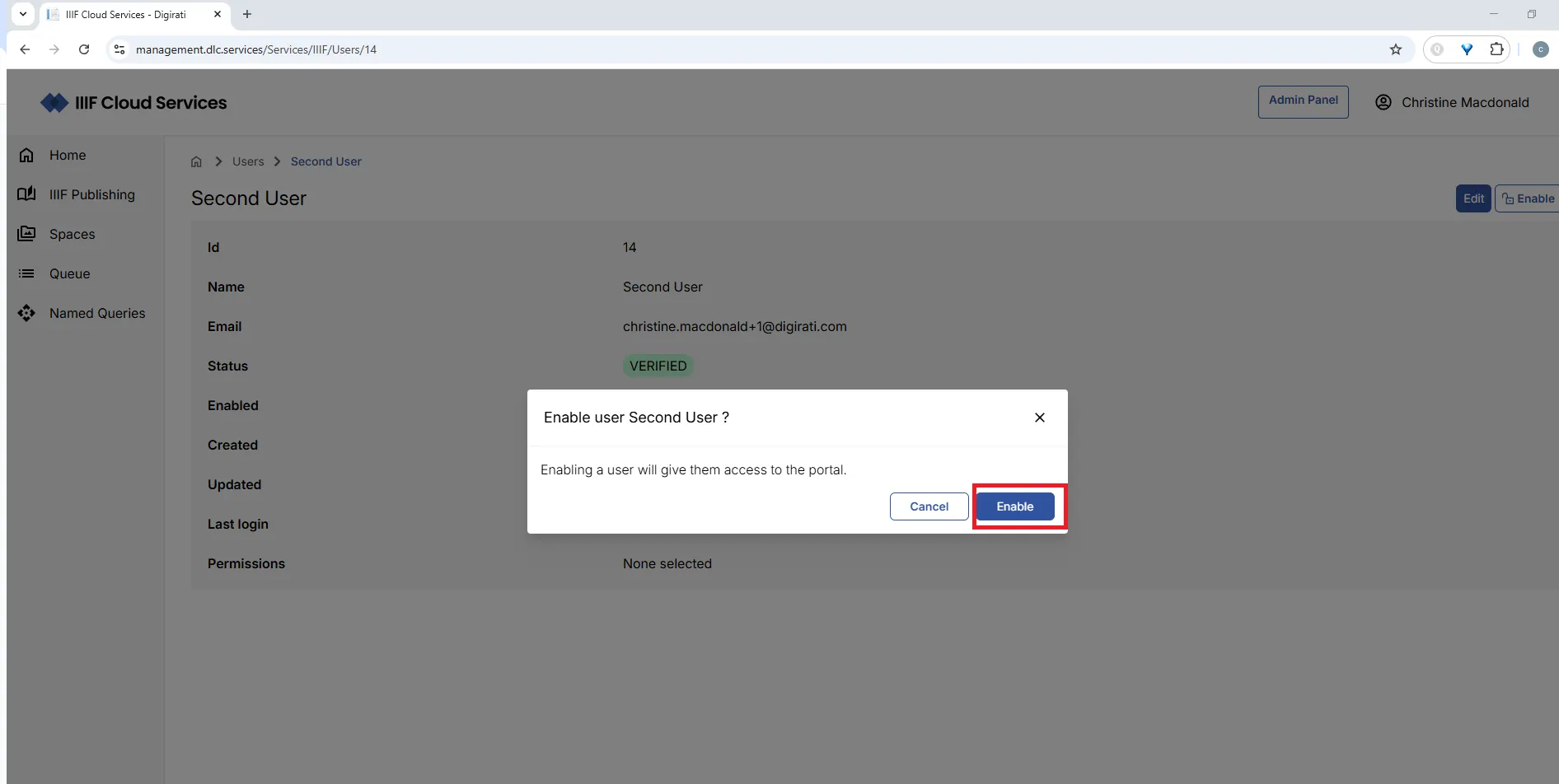
You can re-enable a disabled user at any time by following the same steps and clicking Enable.
For help with any aspect of the portal, contact support.iiif-cs@digirati.com.