Working with IIIF Collections
IIIF Collections allow you to group Manifests and other Collections together into a structured hierarchy. The portal enables you to create new collections, import existing ones, and manage their contents.
Creating a new collection
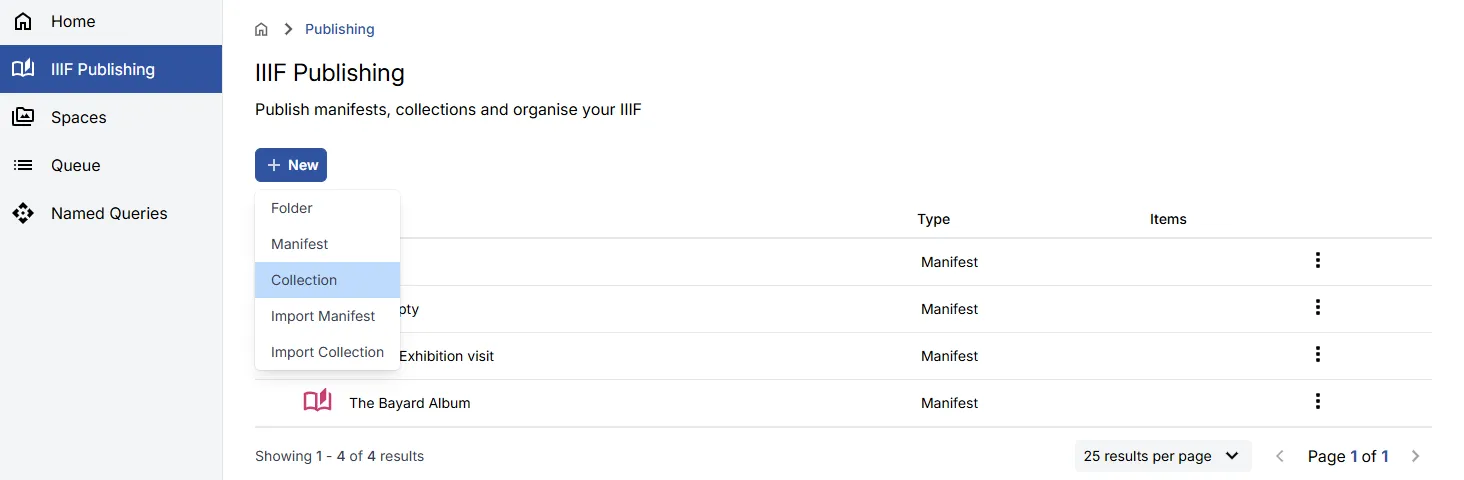
Section titled “Creating a new collection”Within the IIIF Publishing area, click New and select Collection.
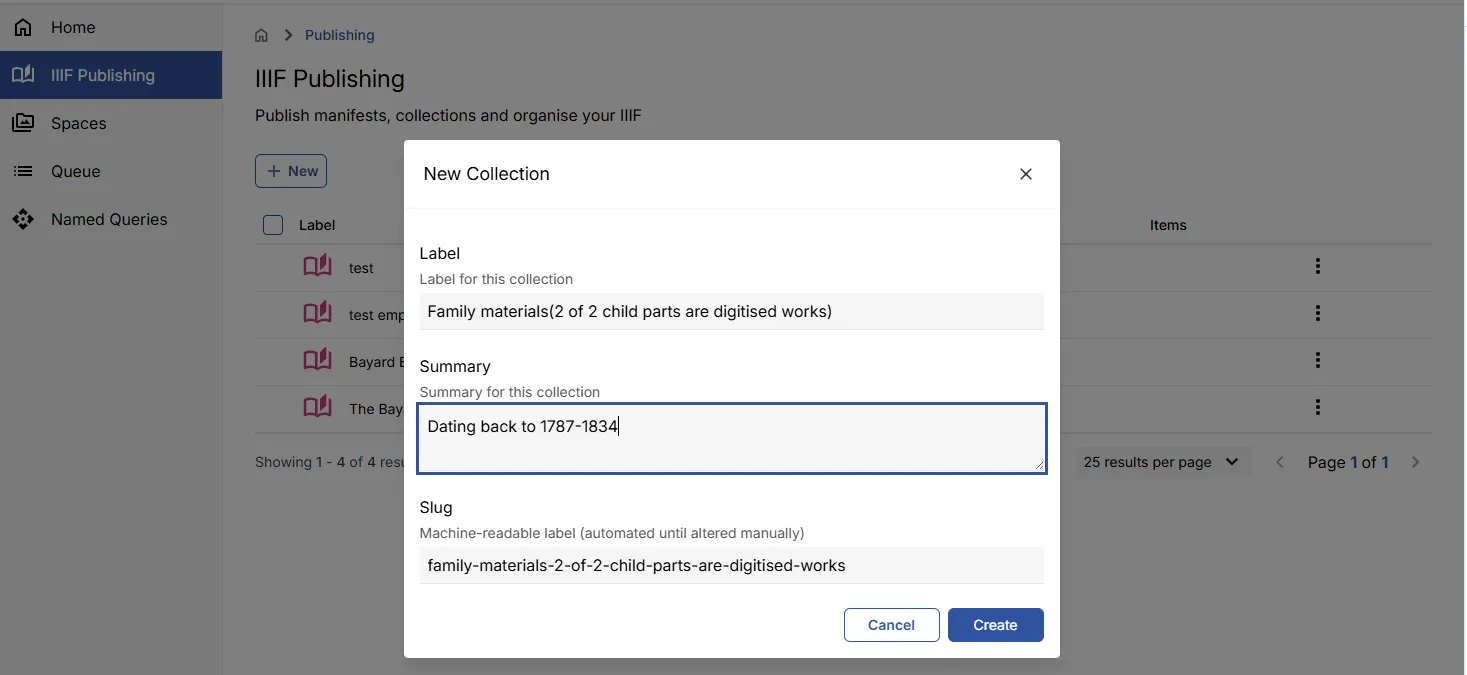
Give the Collection a Label and an optional Summary. The Slug will be auto-populated from the Label.
Click Create. You will be taken to the Collection view, where the empty Collection is displayed.
Editing collection metadata
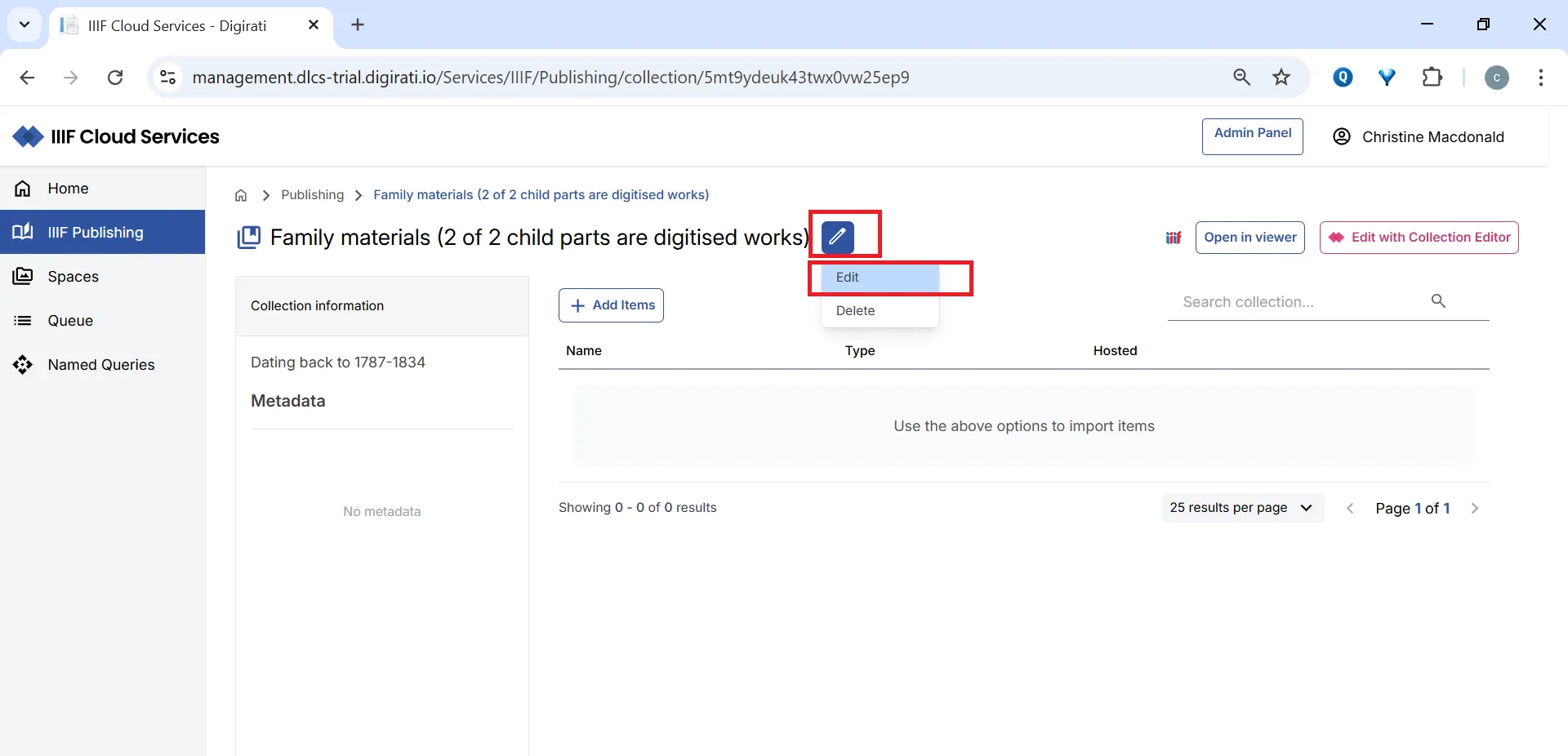
Section titled “Editing collection metadata”Click the pencil icon, then Edit to edit the basic Collection metadata.
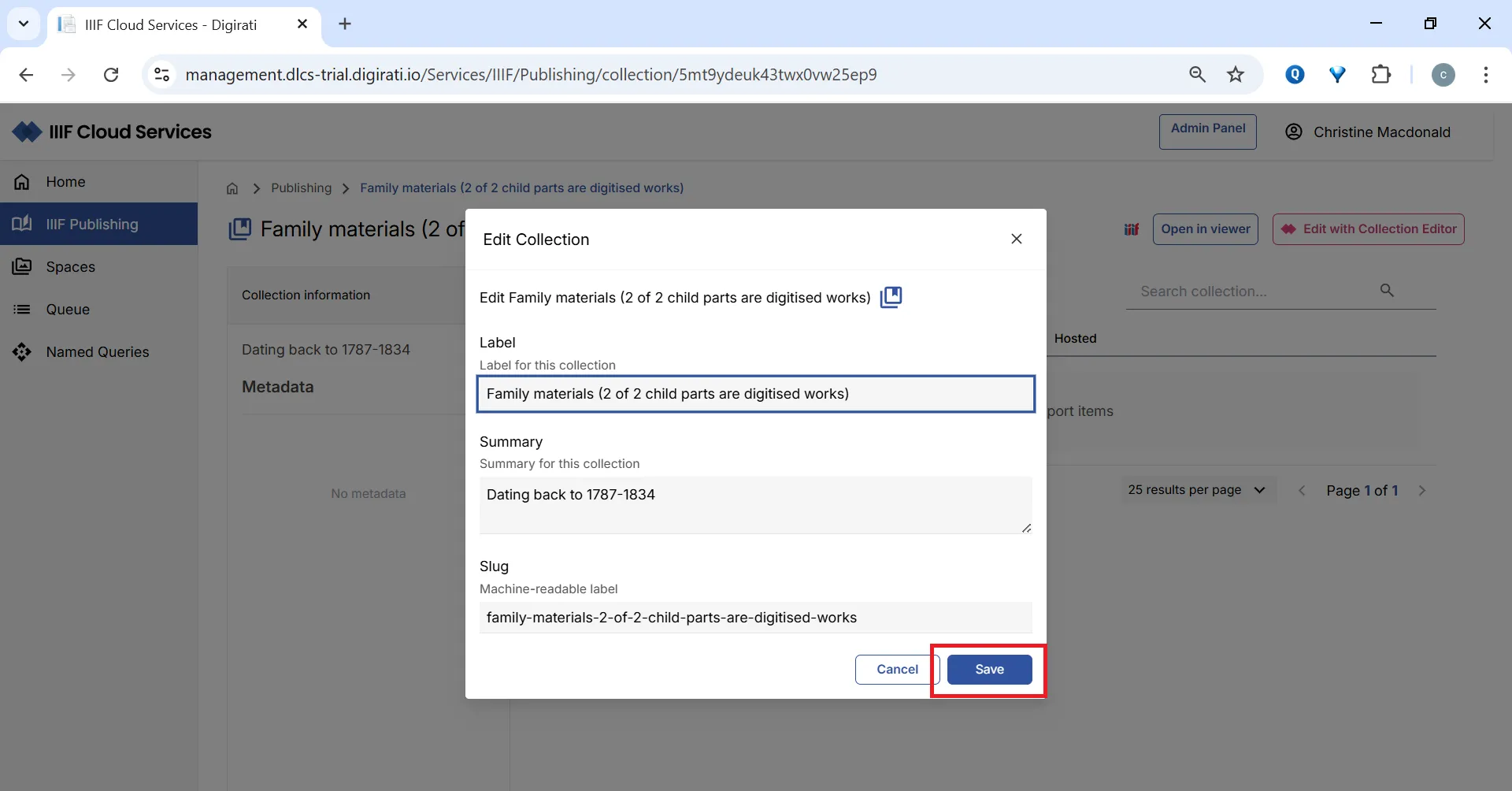
Edit the metadata and click Save, or click Cancel to discard your changes.
Adding items to your collection
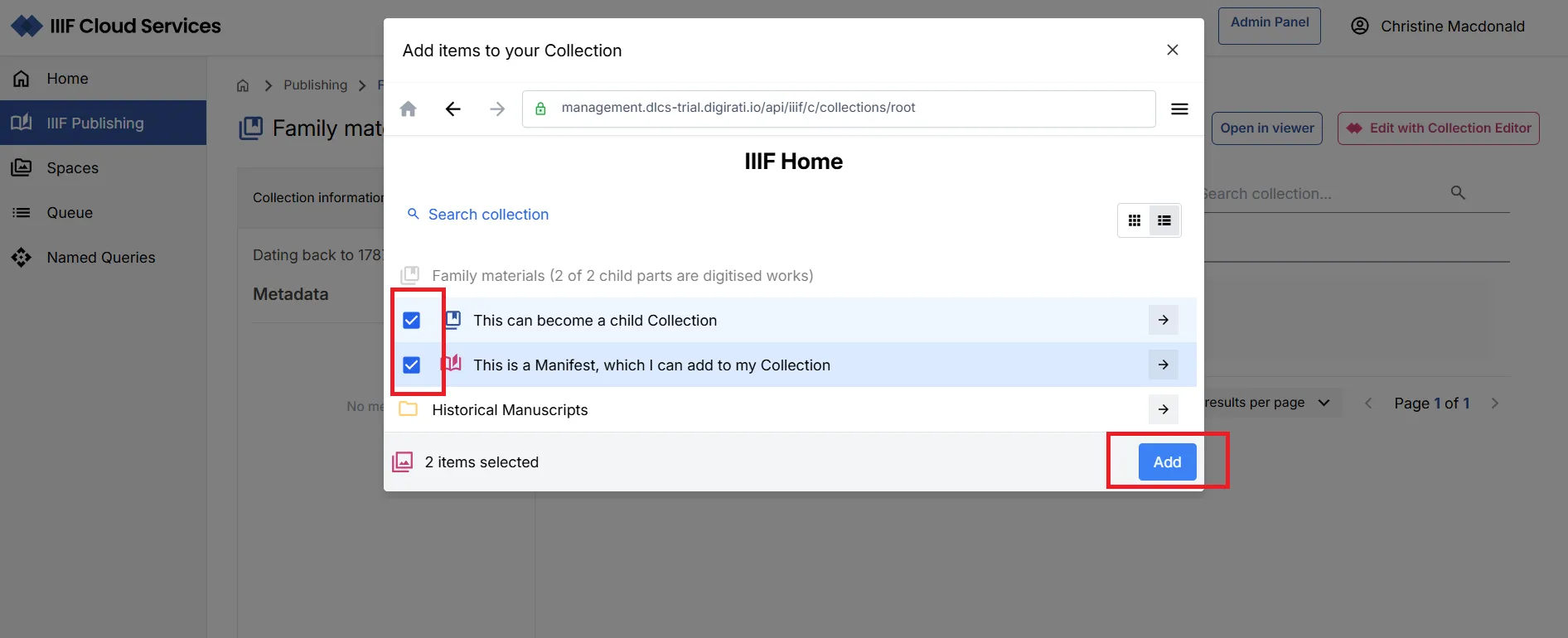
Section titled “Adding items to your collection”Add Manifests and other Collections using the Add items button, which opens the IIIF Browser.
You cannot add a Collection to itself — it will appear disabled in the IIIF Browser. You can add any other Collection or Manifest, but each item can only appear once in the same Collection.
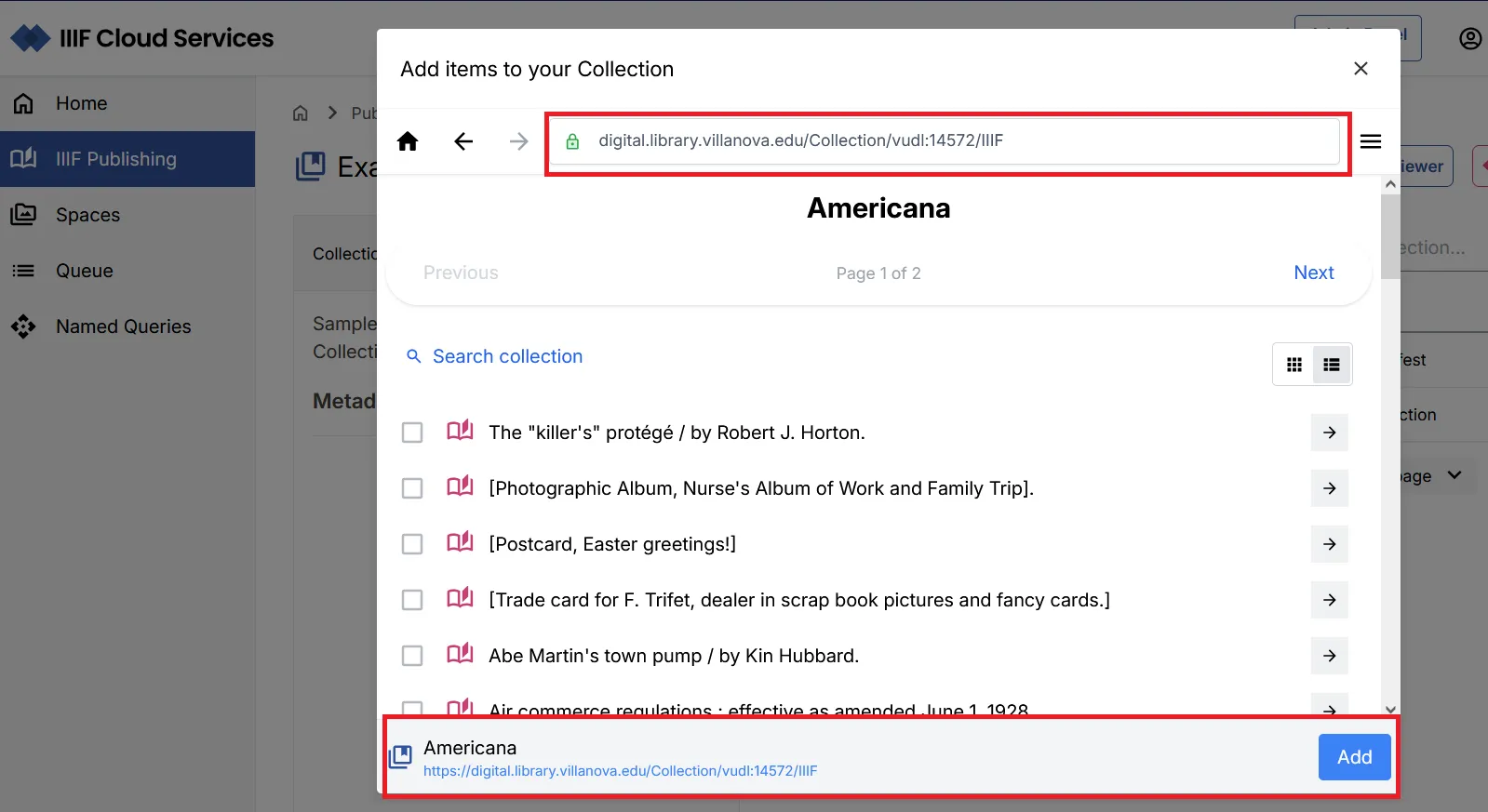
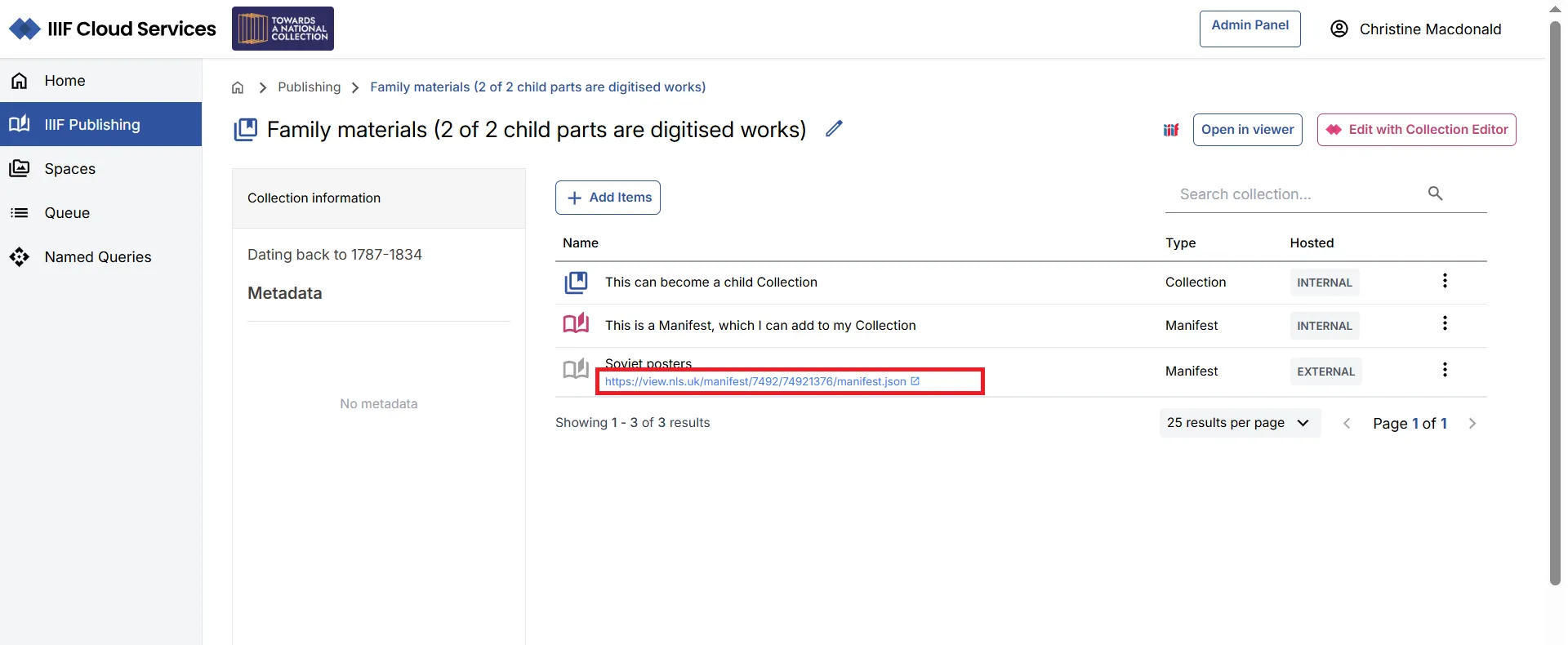
You can also add external content directly by pasting a URL into the IIIF Browser.
Once added, the items are listed within the Collection in the order they were added. Items hosted within your IIIF Publishing area are marked INTERNAL; items from external sources are marked EXTERNAL.
Deleting an item from your collection
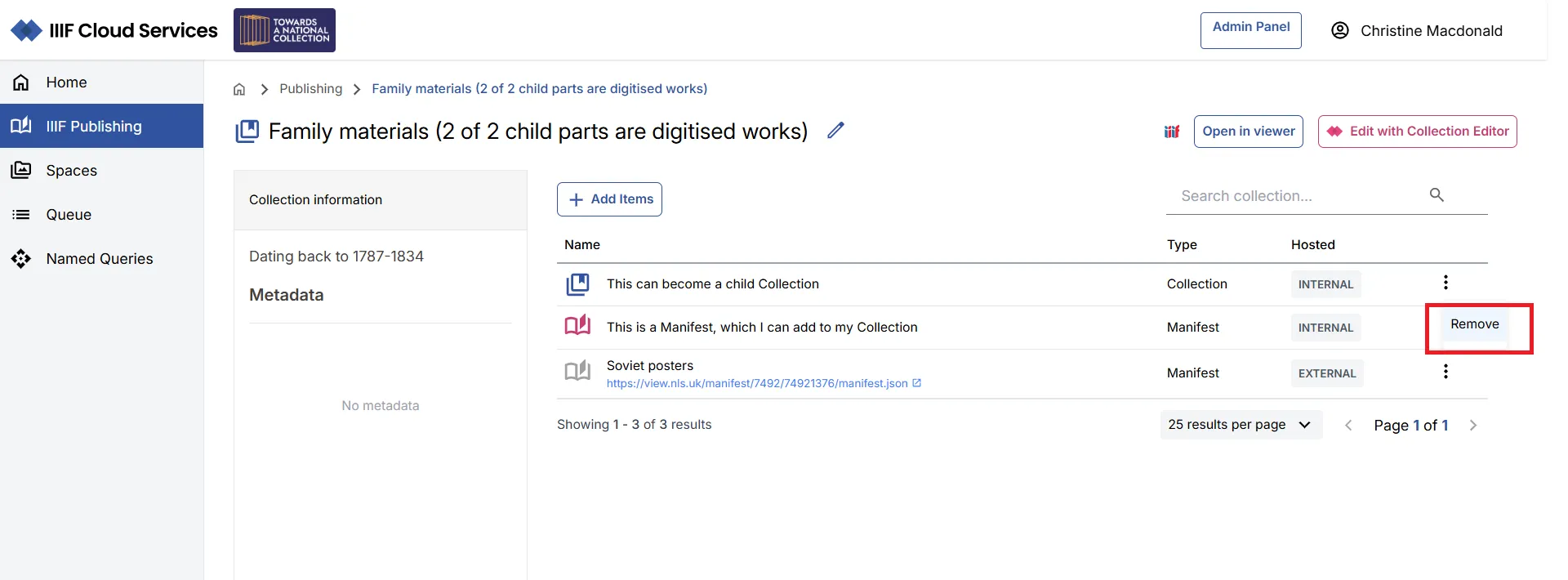
Section titled “Deleting an item from your collection”Click the ⋮ menu to the right of the item and select Remove.
Viewing your collection
Section titled “Viewing your collection”Using the Open in Viewer option, you can view your Collection in:
- Theseus
- Mirador
A link to the IIIF Collection (via the IIIF icon) is also available to drag and drop into viewers that support IIIF Collections.
Edit with the Collection Editor
Section titled “Edit with the Collection Editor”Click Edit with Collection Editor to view and edit the Collection in detail.
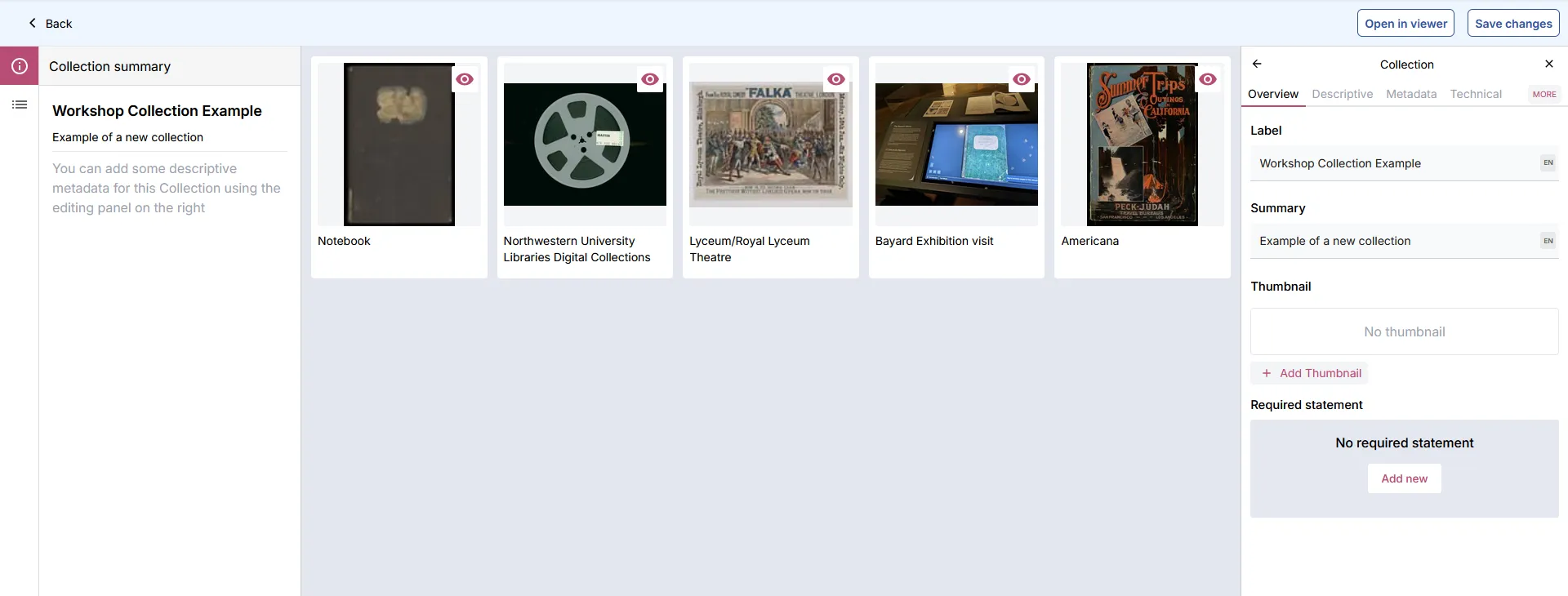
The default view shows the Collection summary in the left panel, with detailed metadata in the right panel. You can add metadata and other IIIF Collection properties using the right panel.
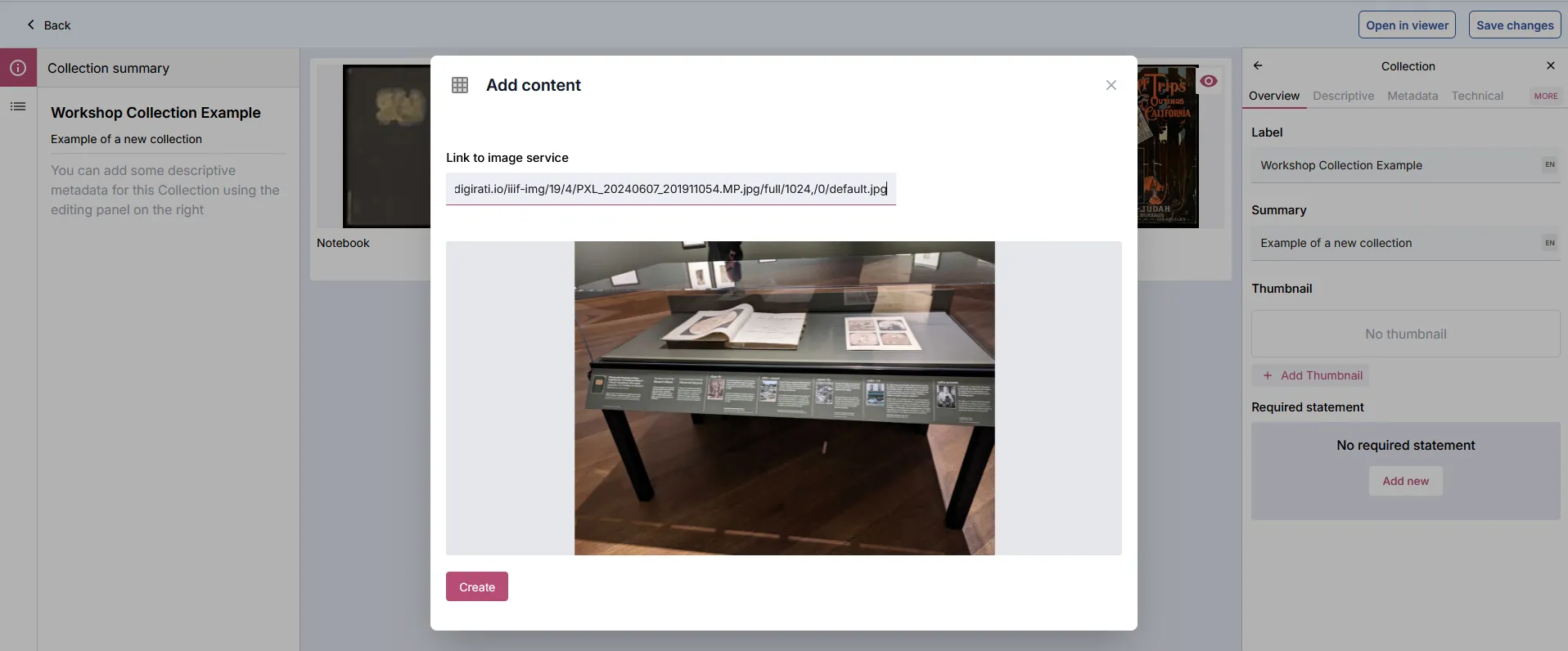
You can also set a thumbnail for the Collection by navigating to the relevant Canvas preview and selecting it.
Updating collection contents
Section titled “Updating collection contents”Click the Collection items icon in the left panel to navigate to the Manifests and Collections view.
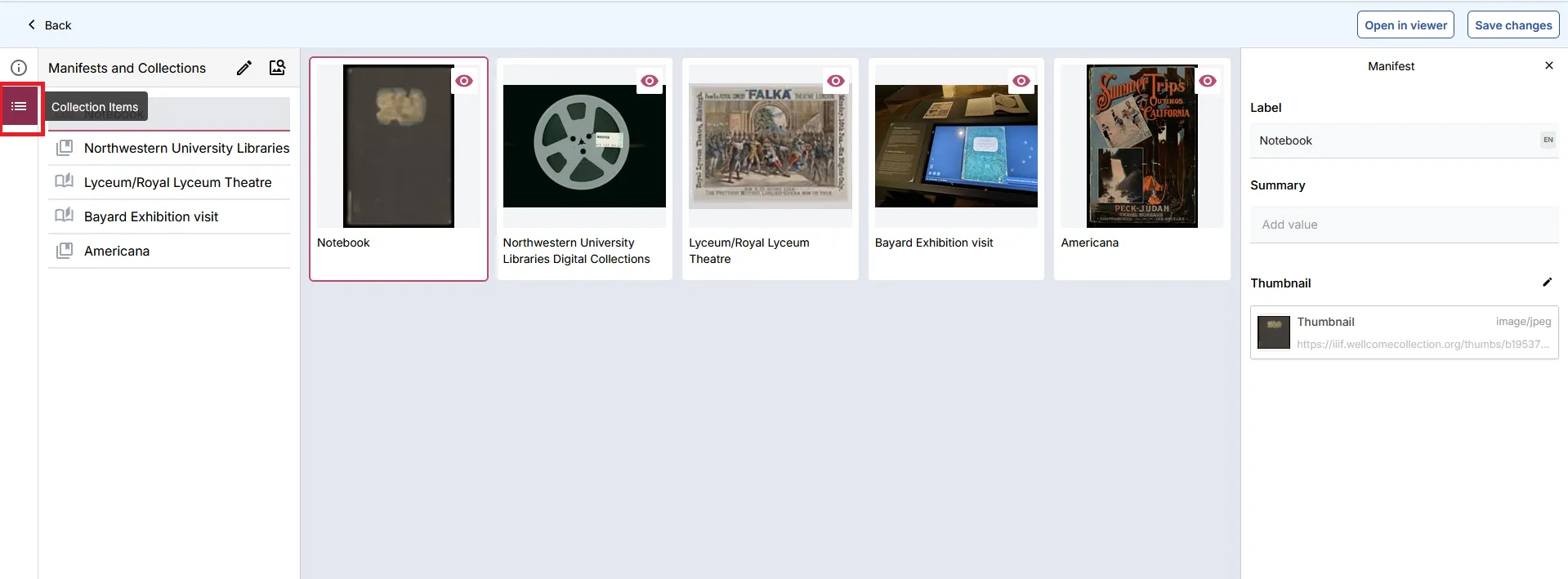
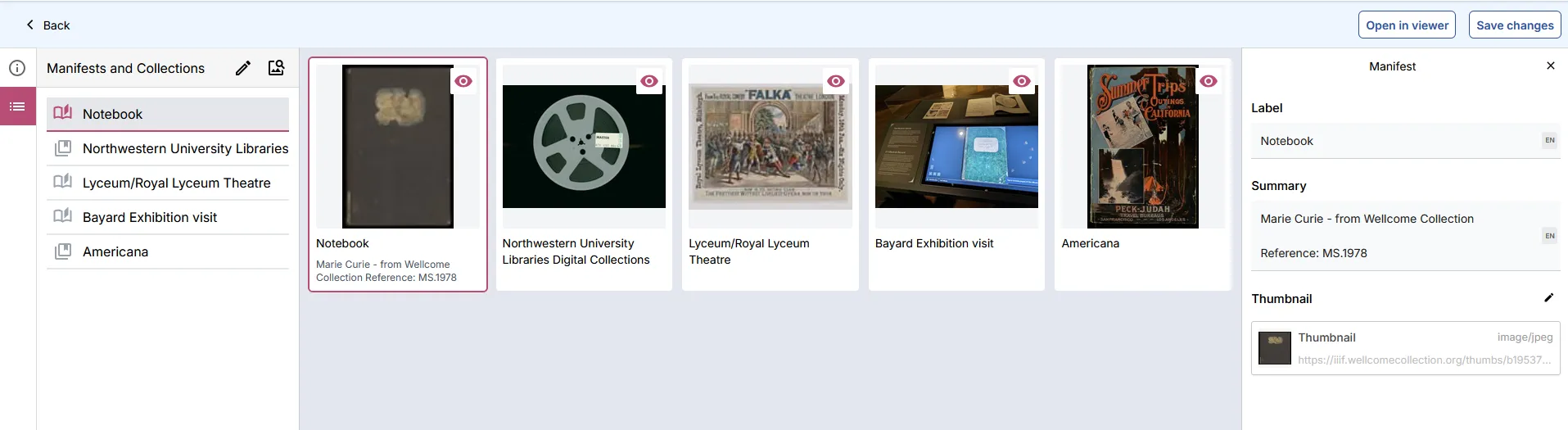
In this view, the right panel shows summary information for the selected item. You can edit the basic metadata for IIIF content within the context of the Collection (this does not affect the underlying item itself).
To reorder items, click the Edit items (pencil) icon in the left panel and use the = drag icon to rearrange.
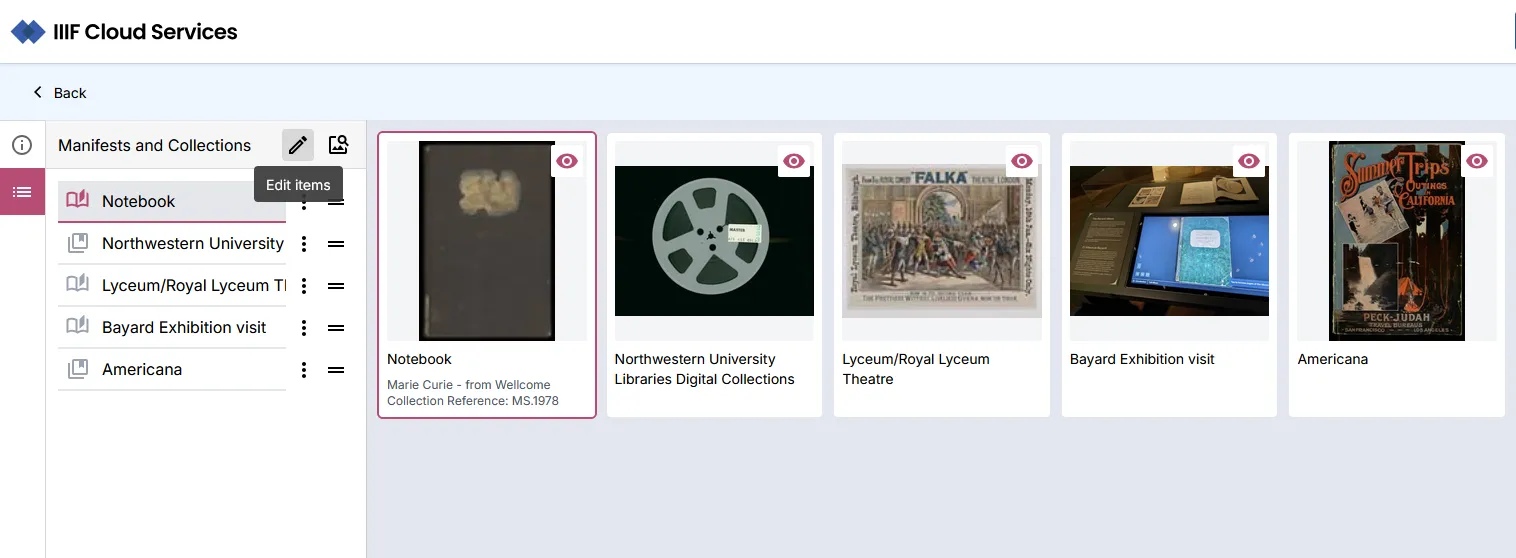
Additional ordering options and Delete are available from the ⋮ menu next to each item.
To add more content, click IIIF Browser to open the browser and search for additional internal or external content.
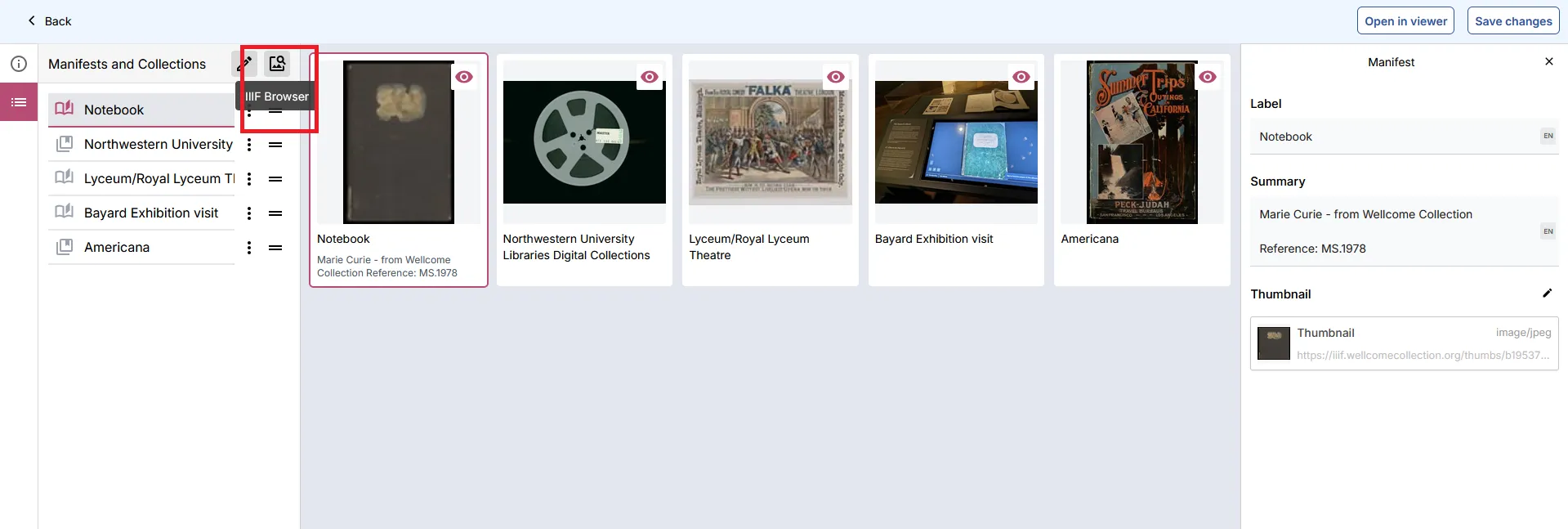
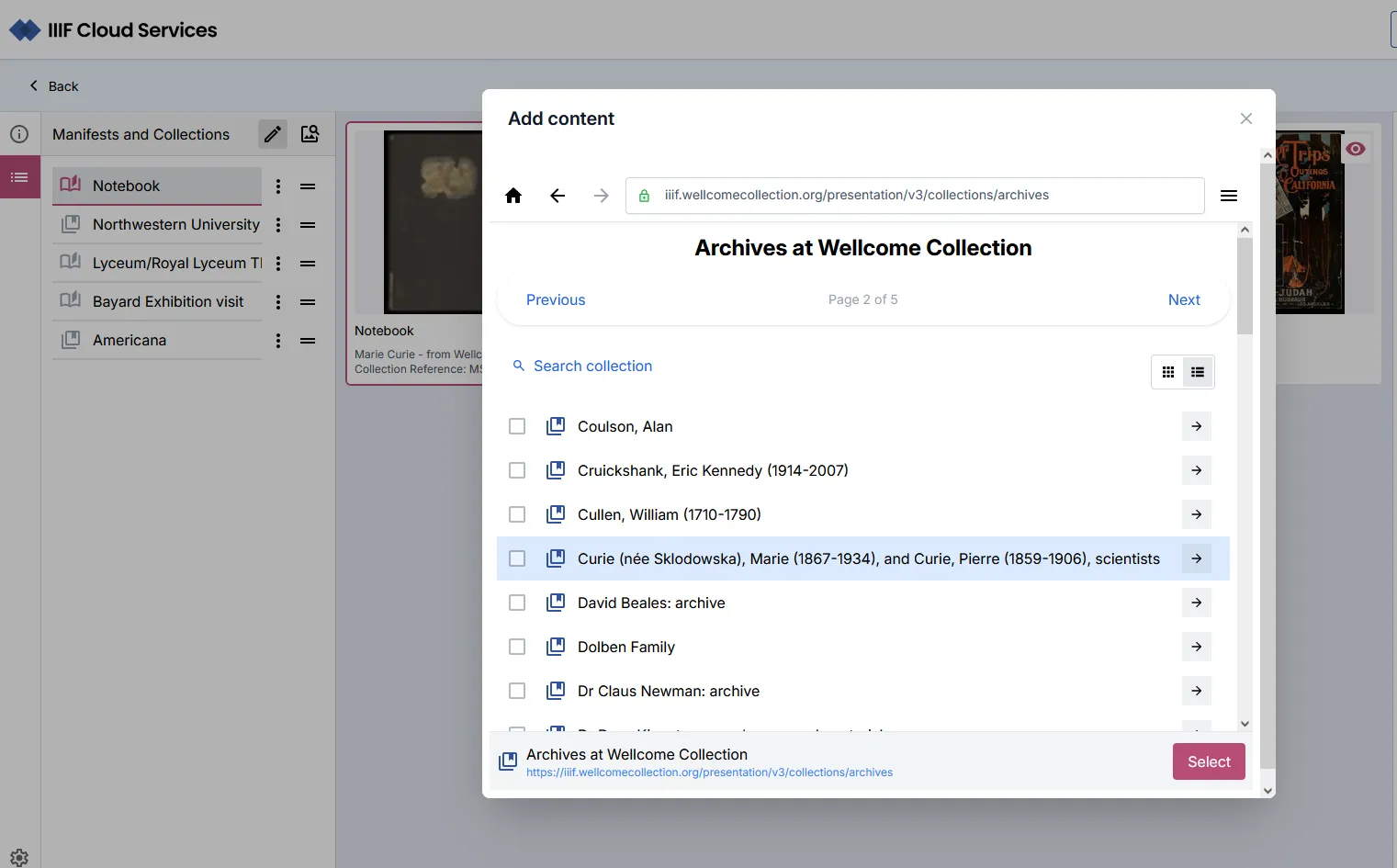
Click Save changes when finished. Use the Back link to return to the portal Collection view.
Importing an existing collection
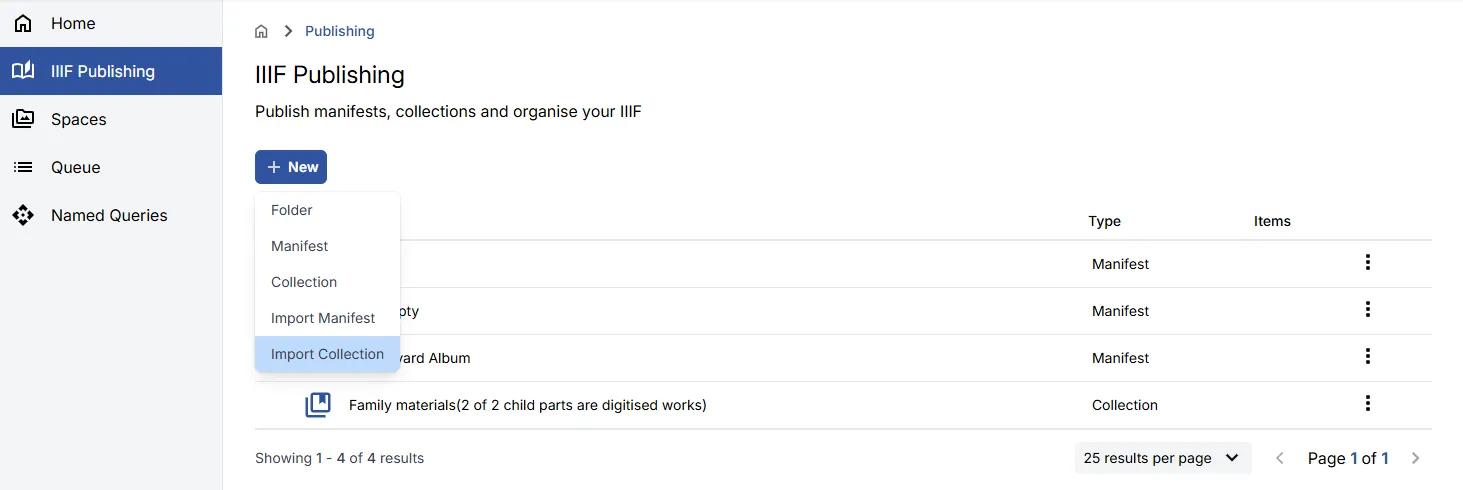
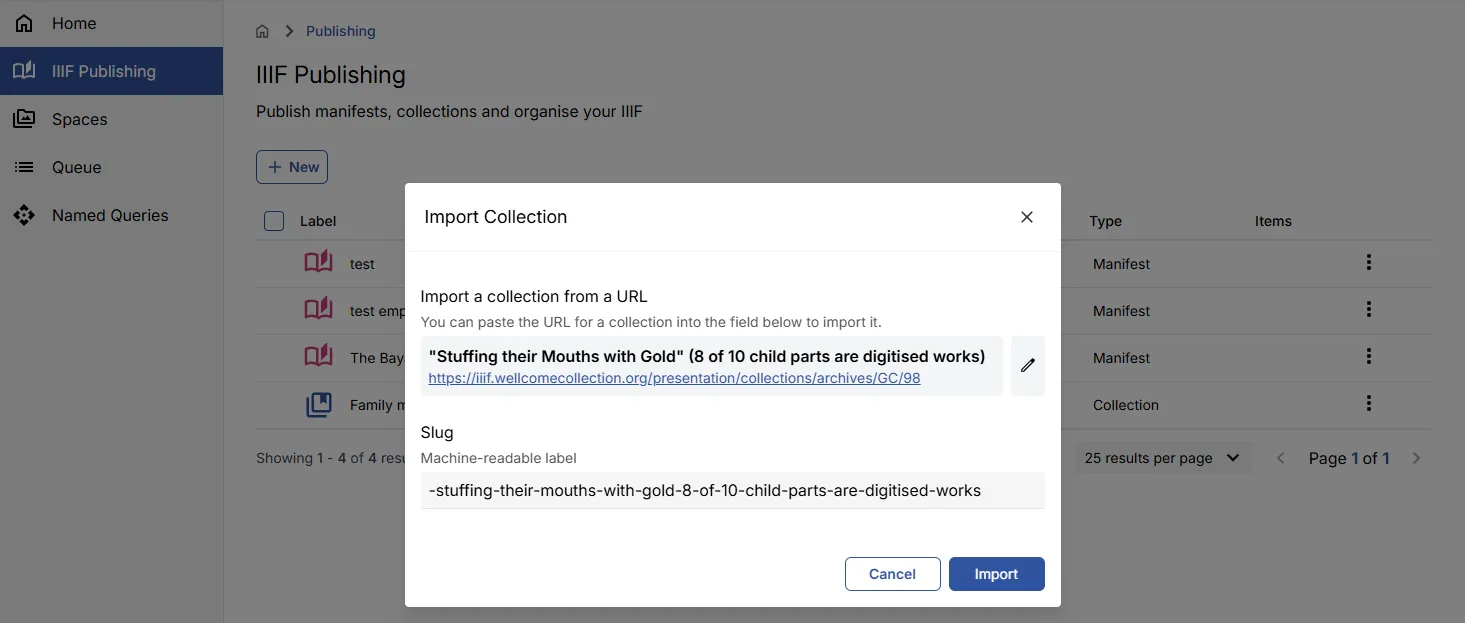
Section titled “Importing an existing collection”Navigate to the IIIF Publishing area and select the destination folder. Click New, then select Import Collection. Enter the URL of a valid IIIF Collection and click Import.